
Can ChatGPT make videos? With code or a connected video tool, it can help produce an MP4. For built-in text-to-video generation, the OpenAI documentation we checked on November 18, 2026 does not list a current replacement for Sora. OpenAI discontinued the Sora web and app experiences on April 26, 2026 and its API on September 24, 2026. ChatGPT still creates images, with looping GIF creation rolling out. Below, we distinguish those outputs from code-rendered video and a real Codex editing run.
Disclosure: we make ChatCut, the video editor used in the hands-on section below. Everything we say about ChatGPT itself comes from OpenAI’s own help center and docs, checked on November 18, 2026. Our planned ChatGPT desktop-app test could not be run. The hands-on evidence below comes from a separate, completed Codex CLI batch-editing run; it does not establish what an ordinary ChatGPT chat can do.
Can ChatGPT make videos on its own?
For a built-in text-to-video model, we found no current offering in the OpenAI documentation reviewed. Producing a video file with code or connected tools is a different route:
| What you ask for | ChatGPT on its own (Nov 18, 2026) | Source |
|---|---|---|
| A video clip from a text prompt | No current built-in model documented in the sources checked. Sora is discontinued | Sora discontinuation |
| A photo turned into a moving video clip | GIF animation is documented and rolling out. The linked guide does not document photo-to-video MP4 generation | Images in ChatGPT |
| Still images and image edits | Yes, on every plan (ChatGPT Images 2.6) | Images in ChatGPT |
| A short looping GIF | Rolling out. It can also animate a still image you upload | Images in ChatGPT |
| A script, shot list or prompts for another tool | Yes, in a normal chat | Using ChatGPT |
| A video rendered from code | Possible in Work or Codex, which can run code and commands. The rendered file still needs review | Using ChatGPT, Codex CLI |
| Your own footage cut, captioned and scored | Not tested in ordinary Chat. Our completed example uses Codex connected to an editor | Earlier desktop-app test |
When reading a Sora tutorial, check its date against the discontinuation notice. The “Voice with video” row on OpenAI’s plan comparison page means showing ChatGPT your camera live in a voice chat: video going in, not coming out.
What happened to Sora, and can ChatGPT generate video with it now?
No. Sora, OpenAI’s video product, has been shut down in the app and in the API. The dates, all from OpenAI:
- April 26, 2026: the Sora web and app experiences were discontinued, per OpenAI’s help article on the discontinuation. The Sora 2 launch page now opens with the note that the Sora product is no longer available as of that date.
- September 24, 2026: the Sora API was discontinued. OpenAI’s API deprecations table lists the Videos API,
sora-2andsora-2-proas shut down that day, with “No one-to-one replacement.” - Your old Sora videos: the help article says you can export them from sora.chatgpt.com/sunset and get an email when the file is ready. After any final export window, OpenAI will permanently delete Sora data.
We found no announced Sora replacement in the ChatGPT release notes reviewed on November 18, 2026. That is a documentation finding, not an app test. The November 4 entry introduces ChatGPT Images 2.6 and a rollout of GIF creation.
What can ChatGPT make instead of a video?
Images, GIFs and text can support a video project; code can also produce a rendered video when the required tools are available:
- Images. ChatGPT Images 2.6 creates and edits images in any aspect ratio, with text or a transparent background, on every tier and in Codex. Use it for thumbnails, storyboard frames and start frames for a video model elsewhere.
- Looping GIFs. Ask for a looping GIF of something simple, or upload a still and ask ChatGPT to animate it, then adjust playback speed and save it. The feature is still rolling out, and ChatGPT can’t edit an animated GIF you upload. Our ChatGPT GIF guide has tested prompts.
- Scripts, shot lists and caption text. Ordinary chat work.
- Video from code. ChatGPT Work can run code and shell commands, and Codex CLI can run tools already installed on your computer, so an agent can drive a code-based renderer. The rendered MP4 is a single video file; later changes depend on retaining the source code or project used to render it. Can ChatGPT Make Animations? compares those routes.
For the editing example below, we used ChatCut to keep the source clips, captions, title cards and music on an editable timeline.
How much does it cost to make a video with ChatGPT?
ChatGPT’s plans in US dollars, from OpenAI’s pricing page on November 18, 2026:
| Plan | Price | Image creation | Codex | Video generation |
|---|---|---|---|---|
| Free | $0/month | Limited | Limited | Not listed |
| Go | $8/month | More | Limited | Not listed |
| Plus | $20/month | More complex and accurate | Expanded | Not listed |
| Pro | From $100/month | Faster; subject to OpenAI’s usage rules | Expanded, longer sessions | Not listed |
The reviewed plan comparison does not list video generation. For the connected-editor route demonstrated here, budget separately for Codex and the editor:
- Codex’s own work (reading transcripts, planning cuts, calling the editor) uses your ChatGPT allowance when you sign in with ChatGPT; using your own API key follows API billing. OpenAI explains both in ChatGPT Work and Codex. Its pricing guide lists CLI access with Plus and higher plans, or an API key; the Free and Go entries describe desktop-app access.
- ChatCut’s side. Uploads, transcription, caption editing and local export do not consume ChatCut credits. In this external-agent run, the cuts and code-built title cards also incurred no recorded ChatCut charge. Free-plan exports have no watermark; cloud exports include a free allowance, and beyond it they follow ChatCut’s current credit rules (see Web vs Desktop Export). With an external agent, ChatCut credits are also spent on hosted generation such as AI video, image, music or voiceover (credits policy). AI video and image generation need a paid ChatCut plan.
In the run below, the only ChatCut charge was 2.88 credits for one 4-second generated shot. The run record does not establish Codex’s authentication or billing route, and its separate usage cost was not measured.
What does a video editor add? A real run with Codex and ChatCut
To show what a connected editor adds, we ran the job in Codex, OpenAI’s coding agent that comes with ChatGPT plans, not in ChatGPT’s chat window. The setup on November 18, 2026:
- Agent: Codex CLI on a Mac, model GPT-6 Astra at high reasoning.
- Editor: ChatCut Desktop, already connected to that Codex install. This run did not time a first-time setup.
- Footage: a folder of three approximately 40-second landscape talking-head clips of the same speaker, about 120 seconds in all.
- Goal: three 9:16 shorts with the same captions, title cards and music, plus one generated B-roll shot, from seven plain-English requests.
The recorded connection-to-export window spans roughly 14 minutes. Follow-up frame checks and reporting were additional. Step durations below are approximate observation windows, including preparation and corrections, rather than model-only timings. Apart from the documented install message, the prompts below reproduce the seven task instructions executed in that run; they are not a transcript of a separate ChatGPT chat.
Connect ChatCut to Codex
The documented one-line install for desktop agents is:
Our Codex session already had ChatCut’s tools, so Codex verified the connection and created a project in about a minute. For a fresh install, see the ChatCut plugin for Codex and the Desktop install guide. ChatCut Desktop runs on macOS 13+ (Apple silicon or Intel) and Windows 10+ (x64), not Linux.
Import and transcribe the whole folder
Codex imported all three files in one step, and the transcripts were ready in about 1.3 minutes. Transcripts let the agent cut by words instead of guessing.
Cut the filler and make vertical versions
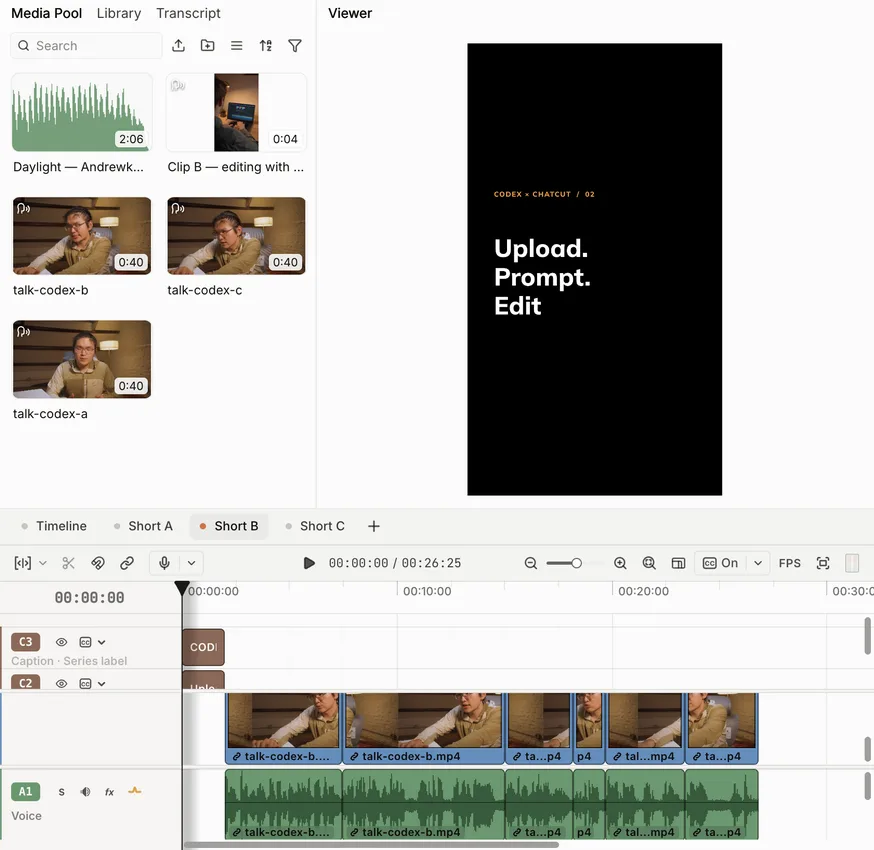
In about 2.5 minutes, Codex removed retakes, “um” and “uh,” and dead air, and built three separate 1080×1920 timelines named Short A, B and C. The folder was batched; the cut decisions were made clip by clip.
Give all three the same captions
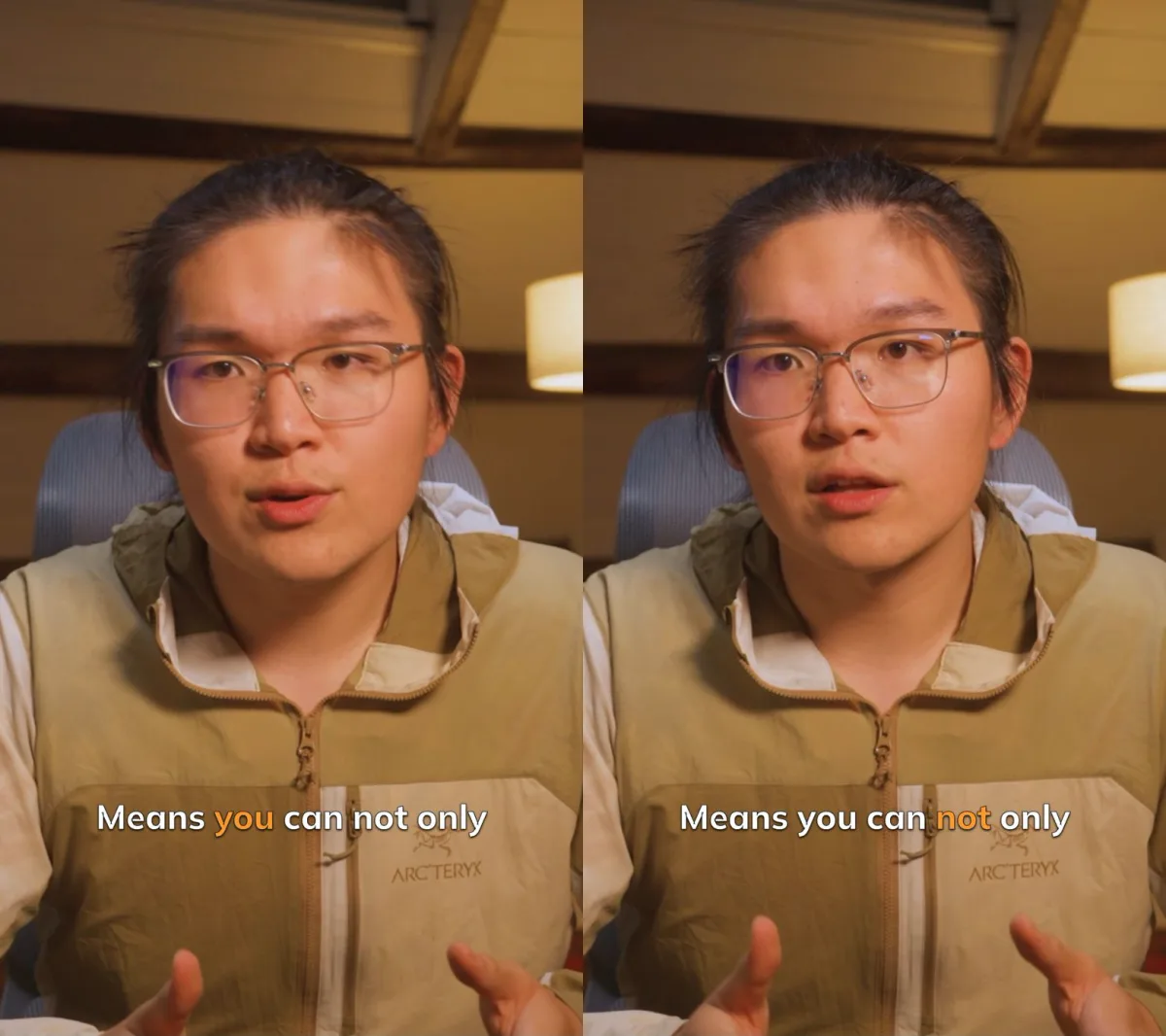
About 1.5 minutes later, all three shorts shared one caption style: bold white text, at most two lines, with only the word being spoken turned orange. Codex compared two nearby frames to check that the highlighted word changed.
Add a title card to each short
Codex wrote one title per short (“AI tools. One workspace.”, “Upload. Prompt. Edit.” and “Human taste meets AI.”) on the same black card with a small orange series label, and pushed the speech and captions back two seconds. This took under a minute.
Generate one B-roll shot, after a price quote
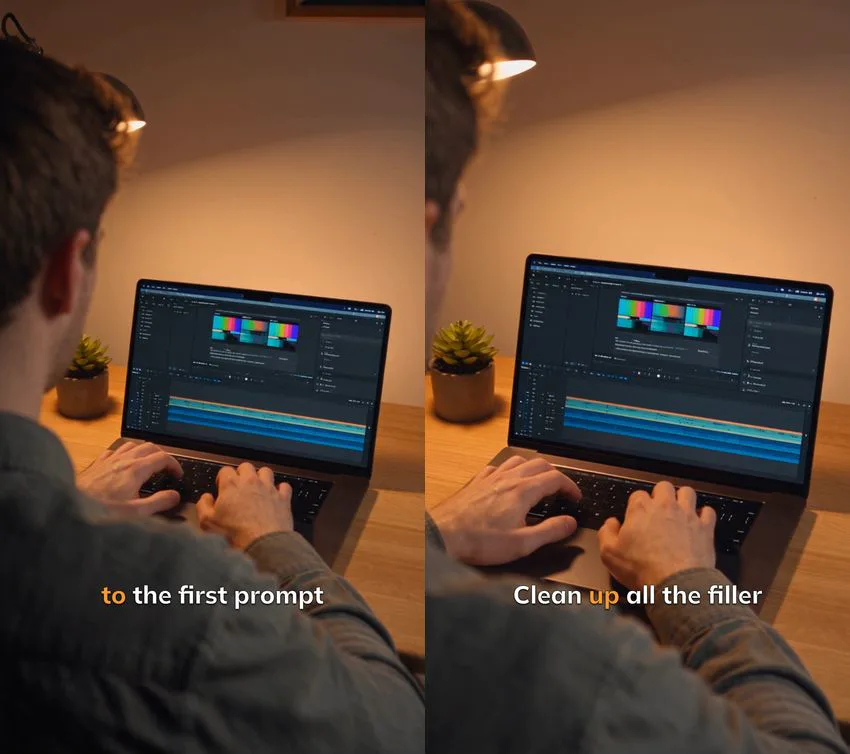
This was the only step with a recorded ChatCut credit charge. Codex got a quote before submitting anything: 2.88 credits for one 4-second, 720p, 9:16 shot from Seedance 2.5 Flash. It generated the shot, confirmed the charge settled at 2.88 credits, and laid it over Short B’s line about editing with a prompt, keeping the voice and captions. Quote to placement took about 3.6 minutes.
Add one music bed, ducked under the voice
Codex found a CC0 track (“Daylight” by Andrewkn on Freesound) through ChatCut’s stock search, used it on all three shorts, and set it to duck automatically when the speaker talks. It then measured the rendered mix of Short C: the analyzed voice segment had an RMS level of about −22.3 dBFS; the quietest sampled music segment during speech was about −46.8 dBFS. These are segment measurements from Short C, not whole-track loudness targets for all three shorts. About 1.2 minutes.
Export everything and summarize
ChatCut rendered three 1080×1920, 30 fps H.264 MP4s with AAC audio. Codex then used its terminal to check each file’s format, decode it end to end without errors, and pull five check frames per short. Its summary, condensed:
| Clip | Original | Final (with 2 s title) | What was cut |
|---|---|---|---|
| A | 40.0 s | 30.0 s | ”um” and “uh,” two false starts, a repeated phrase and a repeated line |
| B | 40.0 s | 26.8 s | A false start and the wait after it, “uh,” several long pauses, an unfinished ending |
| C | 40.0 s | 12.5 s | Two false starts, waits of 8.6 s and 5.9 s, “uh,” an unfinished last section |
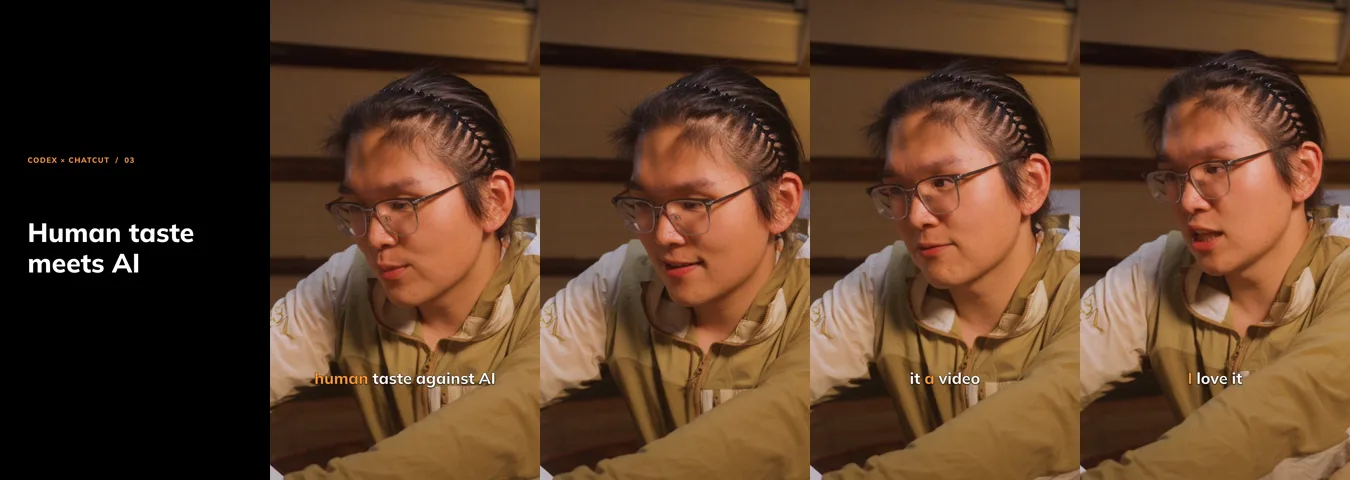
Batching saved repeated setup, not judgment: one import, one caption style, one title template, one music download and three back-to-back exports with the same checks. What to cut, and how each vertical frame looked, still had to be judged per clip.
Can you do the same thing in the ChatGPT desktop app?
The documented route uses Codex in the desktop app. We did not verify it in this article’s app test. In OpenAI’s ChatGPT desktop app, select Codex, send Read ChatCut.io/desktop to install ChatCut, sign in inside ChatCut Desktop, and start a fresh task so the tools load. Existing ChatCut Web projects use a separate hosted Web plugin. Our step-by-step guide to editing video with ChatGPT covers both routes, and our ChatGPT editing test shows a desktop-app run. We did not repeat that run for this article. Note that OpenAI’s desktop app also runs on Linux, but ChatCut Desktop does not.
What should you still check before you publish?
An agent’s edit is still a draft. Before you post:
- Proofread captions by ear. Automatic transcripts mishear words, especially names and product terms. In our run we flagged a few caption words to fix against the audio before publishing.
- Check every vertical frame. Turning landscape footage into 9:16 can push an off-center speaker toward the edge. Scrub each short.
- Listen to the mix on a phone. Ducking numbers are a good sign, not a substitute for your ears.
- Treat generated shots as synthetic. Make sure they don’t look like real product footage, and follow platform rules such as YouTube’s altered or synthetic content disclosure when a shot looks realistic.
- Play the exported file, not just the timeline: start, end, captions, audio, resolution.