
Yes — if you are asking can Gemini watch videos, Gemini supports video uploads and questions about YouTube content. The exact input limits and available features depend on whether you use Gemini Apps, Chrome, Live, or the Gemini API. Google’s analysis guides describe answering questions about video; they do not establish a local multi-track editing and export workflow. For comparison guides, see Claude and video and ChatGPT and video.
ChatCut is our product. On November 18, 2026, we ran a real test using Gemini 4 Carbon inside Google Antigravity, connected to ChatCut Desktop on macOS. Gemini analyzed a transcript and eight frames sampled every 10 seconds from our 73.5-second loft recording, selected two speech ranges, then cut, captioned, and exported a 16.9-second clip. The original session and tool receipts confirm the workflow; the post-export billing snapshot reports 0.00 ChatCut credits for this project. This tests Gemini working with selected images and a transcript through editing tools, not native video uploads in Gemini Apps or the API. The prompts below are reusable versions of the workflow, not verbatim session messages.
Below are Google’s documented video-input rules, checked on November 18, 2026, followed by our Antigravity + ChatCut test and an audit of what Gemini got right and missed with 10-second frame sampling. For a broader workflow, see can Gemini edit videos or how to edit video with Antigravity.
Can Gemini watch videos in Google’s own apps (YouTube links, uploads, and limits)?
These five surfaces have different inputs and restrictions. API implementation details and quotas should not be assumed to apply to Gemini Apps.
| Google surface | Input | Published limits or requirements | Documented use |
|---|---|---|---|
| YouTube in Gemini Apps (Gemini Apps Help) | Questions about YouTube videos | Signed in; Keep Activity on; unavailable in Live chats and Google Messages | Find videos and ask about their content; this help page does not specify frame sampling |
| File uploads in Gemini Apps (File help) | Supported video attachments | 2 GB/video, 10 files/prompt subject to availability; 5 minutes total video, or 1 hour on Google AI Pro / Ultra | Answers, summaries, and insights |
| Gemini in Chrome (Chrome Help) | Audio/video already played in shared tabs | Supported Mac, Windows, or Chromebook Plus; signed in; supported region/language; age requirement varies by country | Questions about played media when Media understanding is enabled |
| Gemini Live (Live Help) | Camera feed or screen sharing | Supported mobile device/account; feature availability varies | Discuss what the camera or screen shows |
| Gemini API (Developer guide) | Uploaded files or public YouTube URLs | Files API: 2 GB free / 20 GB paid; context and request limits also apply | Programmatic video analysis, separate from the consumer app |
Can Gemini watch YouTube videos from a link?
Google documents finding YouTube videos and asking follow-up questions about their content in Gemini Apps. You can try supplying a public URL to identify the video, but the linked Apps guide does not guarantee that every pasted URL is playable or that every visual detail is inspected. Direct YouTube-URL input is explicitly documented for the API.
Check these distinctions when a YouTube request fails:
- Keep Activity must be turned on. Google states that YouTube content analysis in Gemini Apps is unavailable whenever Keep Activity is turned off on your Google Account.
- API rules are separate. Google’s API YouTube guide restricts URL inputs to public videos, with 8 hours/day on the free tier and up to 10 videos/request on Gemini 2.5 or later. These are not documented Gemini Apps quotas.
- Not supported in Gemini Live or Google Messages. Pasting or asking about YouTube videos is currently disabled inside Live voice chats and Gemini in Google Messages (Gemini Apps Help).
- Read-only access to YouTube. Gemini Apps cannot display a complete list of your personal watch history, liked videos, saved playlists, or subscriptions, and cannot save videos to playlists or post comments on your behalf.
Ask Gemini to distinguish spoken material from visual observations. YouTube’s Show transcript panel helps check captioned speech and jump to timestamps; inspect the video itself to verify visual claims.
What is the Gemini video upload limit, file size, and format list?
For local files, use Add files → Upload Files in Gemini Apps. Add from Drive requires History on and Google Workspace connected; work/school access also depends on the administrator. Google’s file-upload help and usage-limit help distinguish attachment caps from usage and storage limits:
- Attachment size: 2 GB per video, up to 10 supported files per prompt, subject to availability. ZIP attachments cannot contain video or audio.
- Combined video duration: 5 minutes normally, or 1 hour with Google AI Pro / Ultra.
- Usage and storage: Personal-account compute limits refresh every 5 hours until a weekly ceiling. Chat-history storage is separate from Drive storage; clearing it does not remove duration or compute limits.
The Apps help page does not publish an exhaustive video-format list. The API’s supported MIME types are a separate specification:
- MP4 (
video/mp4) and QuickTime MOV (video/mov) - WebM (
video/webm) and AVI (video/avi) - MPEG / MPG (
video/mpeg,video/mpg) - Windows Media Video (
video/wmv), 3GPP (video/3gpp), and FLV (video/x-flv)
For API models with a 1M context window, Google documents up to 3 hours at low media resolution or 1 hour at high resolution. The same page currently gives inconsistent inline-upload thresholds, so use the Files API for larger videos and check the request-specific documentation.
Use MM:SS timestamps in your prompt so you can return to the claimed moment and check it:
How does Gemini video understanding actually read frames and audio?
Google’s API video documentation describes static and opt-in agentic processing. This does not establish how every consumer-app surface processes video.
- Static: The documented default is 1 FPS plus audio. Developers can adjust sampling; fast visual changes may be missed.
- Agentic: Supported models navigate the timeline and load relevant content on demand. Google’s explicit list includes Gemini 4 Carbon, Argon, Hydrogen, 3.8 Flash, 3.6 Flash, and 3.5 Flash Lite; do not generalize that to every “3.5+” model.
Gemini in Chrome has a Media understanding toggle at chrome://settings/ai/gemini for questions about media already played. Gemini Live instead accepts a live camera view or screen share. Neither is the same input path as uploading a saved file to the API.
For this article’s cut, corrected captions, and MP4 export, the editing tool is ChatCut Desktop. A text answer with useful timestamps is an edit plan; it is not yet an edited media file.
How do you let Gemini watch a local video and cut the best part in Antigravity and ChatCut?
For “watch this recording, pick a short highlight, and cut it with subtitles,” connect Antigravity to ChatCut Desktop. Desktop supports macOS 13+ (Apple silicon or Intel) and Windows 10+ x64, not Linux (system requirements). Editing and rendering can run locally; online AI features still require network access, so this is not an offline or no-upload guarantee. Antigravity model access and reasoning usage follow Google’s plans and available models. ChatCut’s credit policy separately covers hosted generation. Uploads, transcription, standard captions, and local export do not themselves consume ChatCut credits. Cloud exports include a free allowance; beyond it, they follow ChatCut’s current credit rules (see Web vs Desktop Export). Local export supports presets up to 4K, and Free access includes core editing. AI image/video generation requires a paid plan and credits. See also editing with ChatGPT.
We created a fresh 1920×1080, 24 fps project and imported the 58.3 MB source recording. The source has a 73.490-second container duration, a 73.168-second H.264 video stream at 23.976 fps, and 48 kHz 24-bit stereo PCM audio. These measurements describe different streams, so they need not end at exactly the same instant. The six steps below cover the connection and the verified editing run, with reusable prompts.
Step 1: Connect Google Antigravity to ChatCut Desktop
In a new Google Antigravity conversation on macOS or Windows, paste the one-line installer prompt from the ChatCut plugin page for Antigravity:
The documented installation flow adds the ChatCut plugin, installs and connects Desktop, and asks you to sign in and start a new conversation. Antigravity must be available for your account and region; the supported setup uses the App, CLI, or IDE with the agy CLI on a computer with a graphical desktop.
Step 2: Import the 73-second loft video, transcribe speech, and sample every 10 seconds
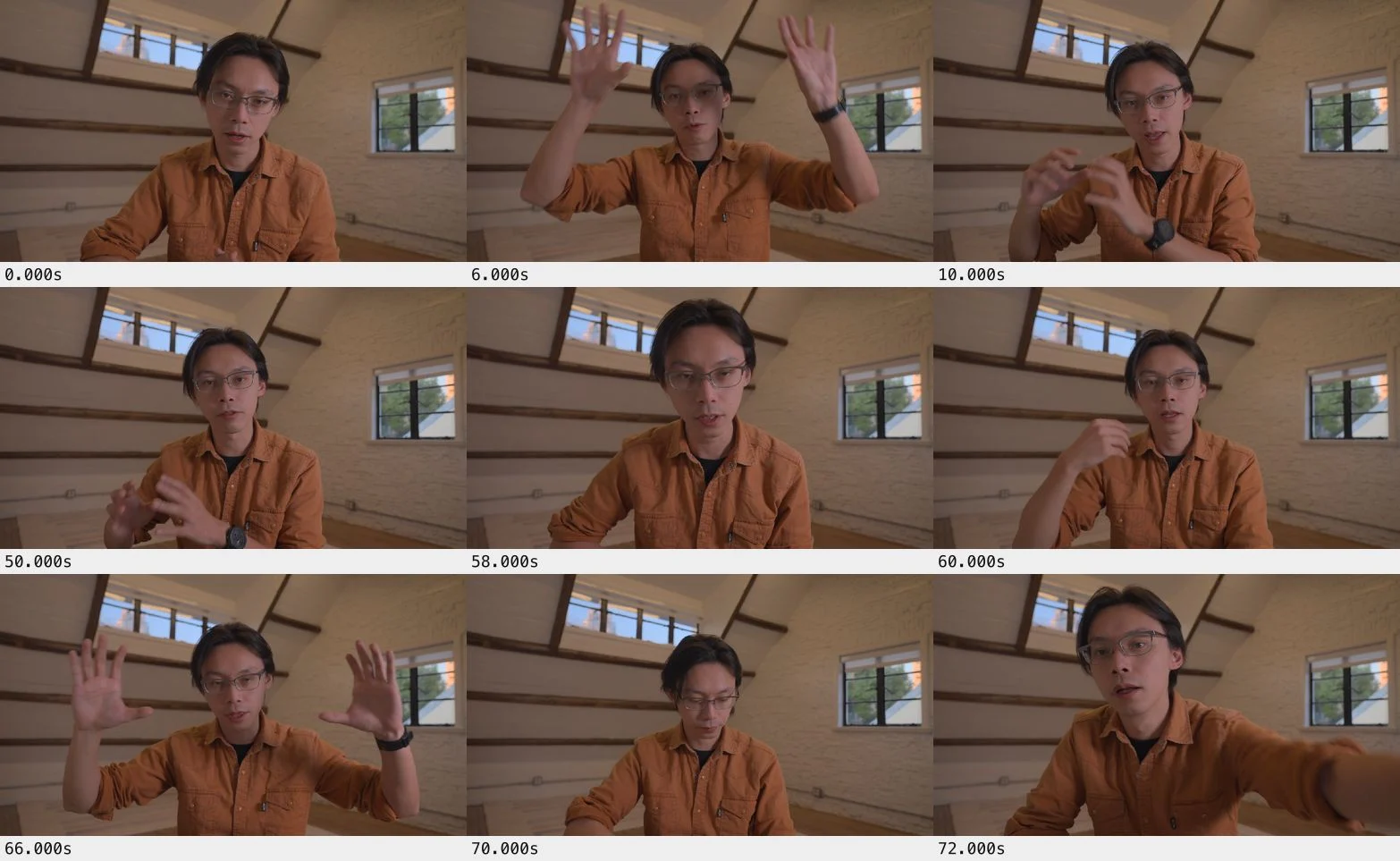
Gemini imported the recording, waited for its word-timed transcript, and extracted samples at 0s, 10s, …, 70s. We then gave a fresh Gemini 4 Carbon analysis session only that eight-frame contact sheet and the transcript, asking for an overall summary, a breakdown of each 10-second window, and a standalone highlight. Its recorded inputs contain neither the denser frames nor the audio file used for the separate audit. Eight stills describe those eight moments; they cannot establish everything that happens between them.
The import began at 13:46:01 and transcription was confirmed complete by 13:46:55, under a minute later in this run. The overview contains eight labeled source frames from 0.000s to 70.000s:
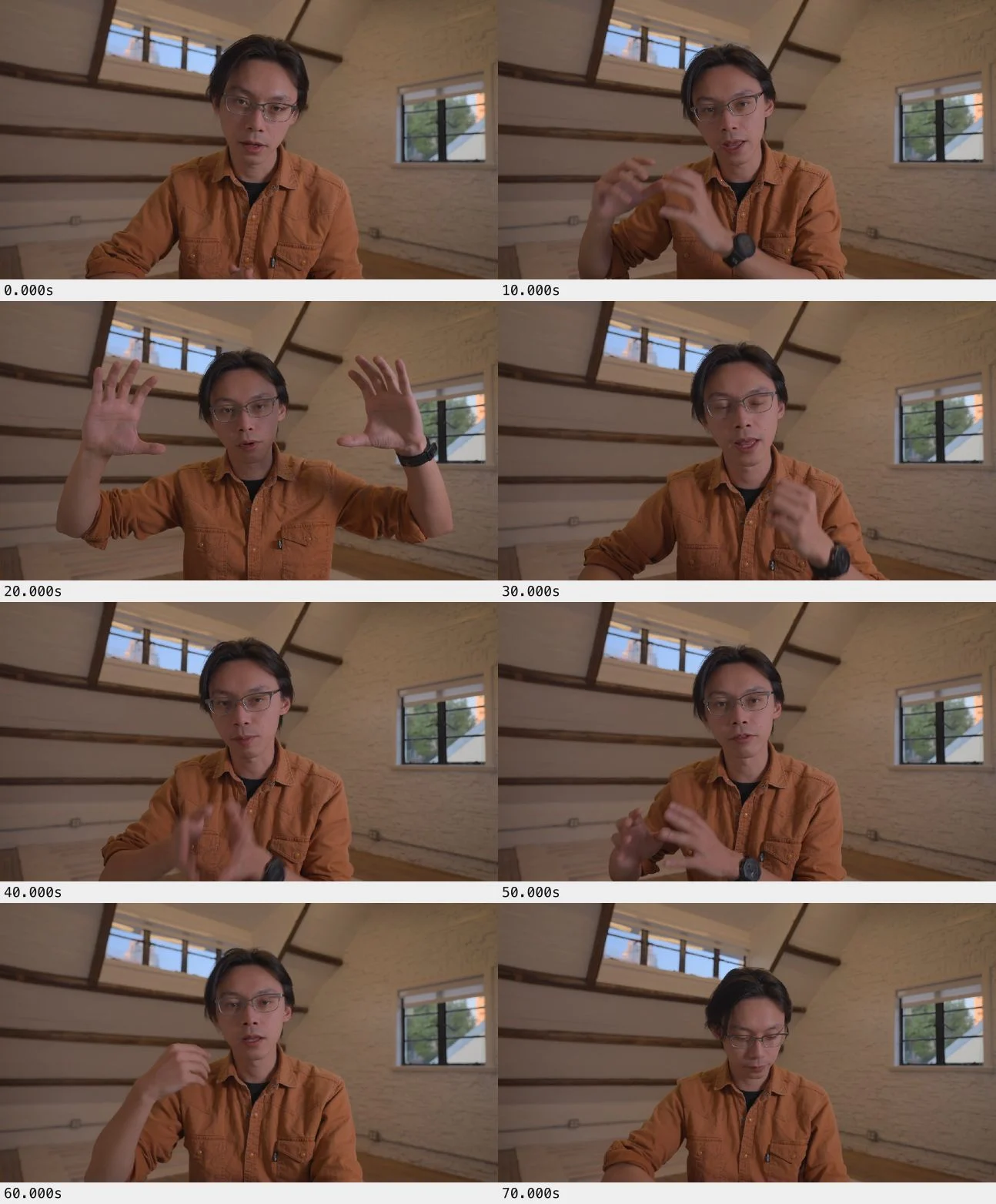
Combining those eight frames with the word-timed transcript, Gemini identified raw talking-head A-roll with multiple false starts. It correctly noted that the sampled images contained no motion-graphics overlays despite the speaker referring to graphics in the video. The table summarizes the original blind-pass response, with the later audit distinguishing visible details from guesses.
| Window | Speech in Gemini’s transcript-based summary | Gemini’s visual report and our audit |
|---|---|---|
| 0–10s | Introduces AI Motion Graphics, then refers to graphics supposedly in the video. | Presenter in a wood-beamed loft; hands low at 0s and gesturing by 10s. No overlay in these samples. |
| 10–20s | Names editing software; Gemini flagged “cars” as a likely mishearing of “cards.” | It connected this suggestion to the wide two-handed gesture at 20s. That is a contextual hypothesis, not proof of the spoken word. |
| 20–30s | Abandons a take and restarts the point about graphics for talking-head videos around 24.32s. | Wide palms at 20s; one-hand gesture and closed eyes at 30s. |
| 30–40s | Finishes the point around 34.93s, pauses, and restarts. | Hand gesture at 40s. The two samples do not establish silence between them. |
| 40–50s | Several incomplete phrases and pauses. | Presenter faces the camera at 50s. |
| 50–60s | Another unfinished line and a pause. | Gemini said he “stays locked onto the camera.” The denser audit shows downward gazes at 51–52s and a forward lean at 58s, contradicting continuous eye contact. |
| 60–70s | A false start precedes the closing line about ChatCut’s AI around 62.54–68.38s. | Raised hand at 60s; looking down by 70s. |
| 70s–end | No further words appear in the transcript. | Gemini acknowledged that only the 70s frame was supplied. It could not observe the later reach toward the camera. |
Step 3: Ask Gemini to pick the strongest ~15-second standalone short clip
With the transcript and overview available, ask for a self-contained highlight before making cuts. Treat “best” as an editorial choice to review, not an objective score:
Gemini selected the two speech ranges below and explained why it skipped the opening: “Thirdly” depends on earlier context, and the claim about graphics already on screen does not match the sampled raw footage. Its choice forms a problem-to-solution passage; “best” remains an editorial judgment. After retaining natural breaths and small boundary pads, the finished landscape clip is 16.9 seconds, slightly longer than the approximately 15-second target:
- Keep Part 1 (24.32s – 34.93s): “These graphics can be so important when you are making a talking-head informational video. And they are so hard to make. And it doesn’t have to be the case anymore.” (Hook → Pain Point → Pivot.)
- Remove the intervening retakes: The speech boundaries span 34.93s–62.54s (27.61 seconds). With retained audio padding, the committed clip boundaries are about 35.13s and 62.50s, so the removed media interval is about 27.37 seconds.
- Keep Part 2 (62.54s–68.38s, speech): The closing line about ChatCut’s AI visualizing what the speaker says. The committed edit retains a little surrounding audio, ending near 68.54s.
Step 4: Cut the retake block from the transcript and disguise the splice with a 1.09× punch-in
Gemini edited the timeline through ChatCut’s transcript-based editing workflow in the video editor, previewed the two selected ranges, and committed the cut:
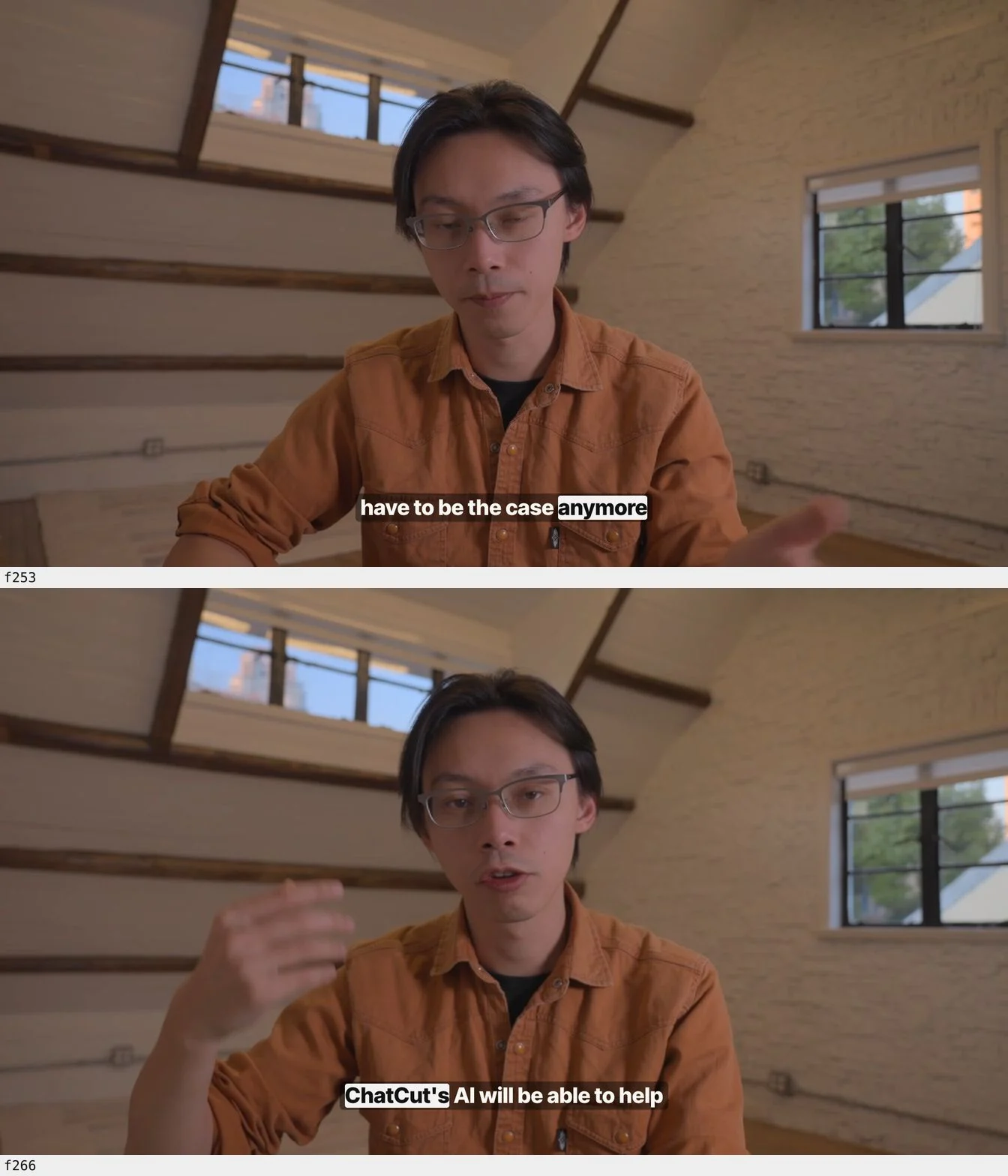
Gemini preserved the natural sentence breaths and committed two clips, with a splice at timeline frame 260 (10.83s). The original tool calls confirm a 1.09× punch-in on the second clip (2093×1177 over the 1920×1080 canvas), plus short audio fades. The first clip ends at source 35.125s, before the audio burst measured at 35.45s. The delivered video has 405 frames at 24 fps: a video-stream duration of 16.875 seconds. Its MP4 container is 16.894 seconds because the audio ends slightly later.
Step 5: Style word-timed captions and fix speech-recognition homophones
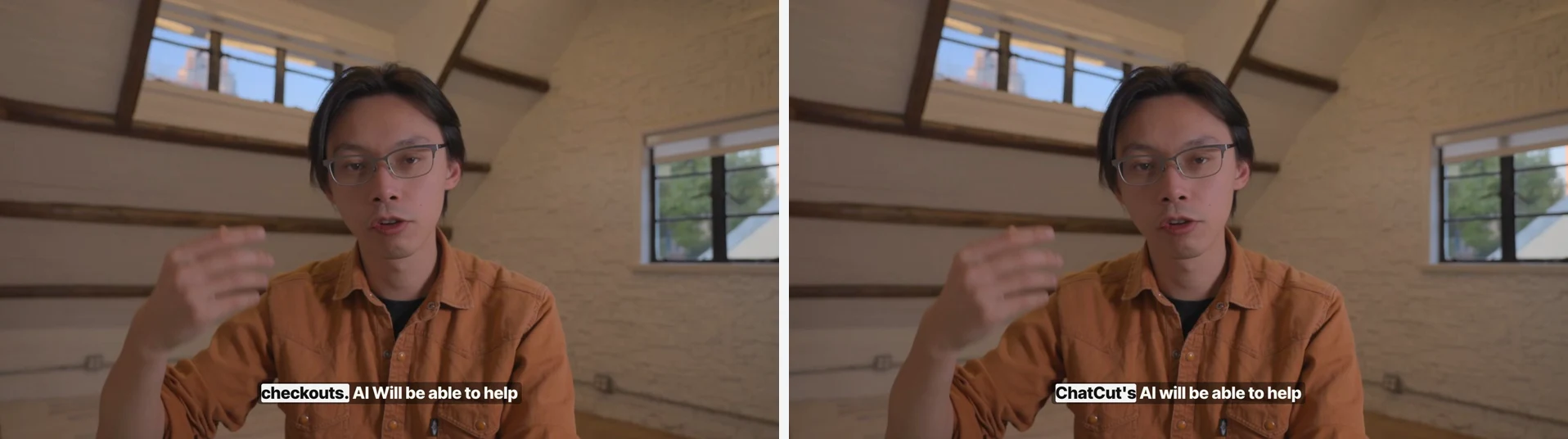
Automatic speech recognition transcribed the brand name as “checkouts.” Gemini applied the published Studio Clean word-highlight template and corrected two displayed caption cards to “when you are making a talking-head” and “ChatCut’s AI will be able to help.” The original caption readback records Inter Tight, weight 800, with a white active-word background. The correction receipts explicitly apply to caption display, leaving the underlying speech edit intact. The before/after images show the change on the same timeline frame.
Step 6: Inspect composed frames, balance loudness, and export 1080p MP4
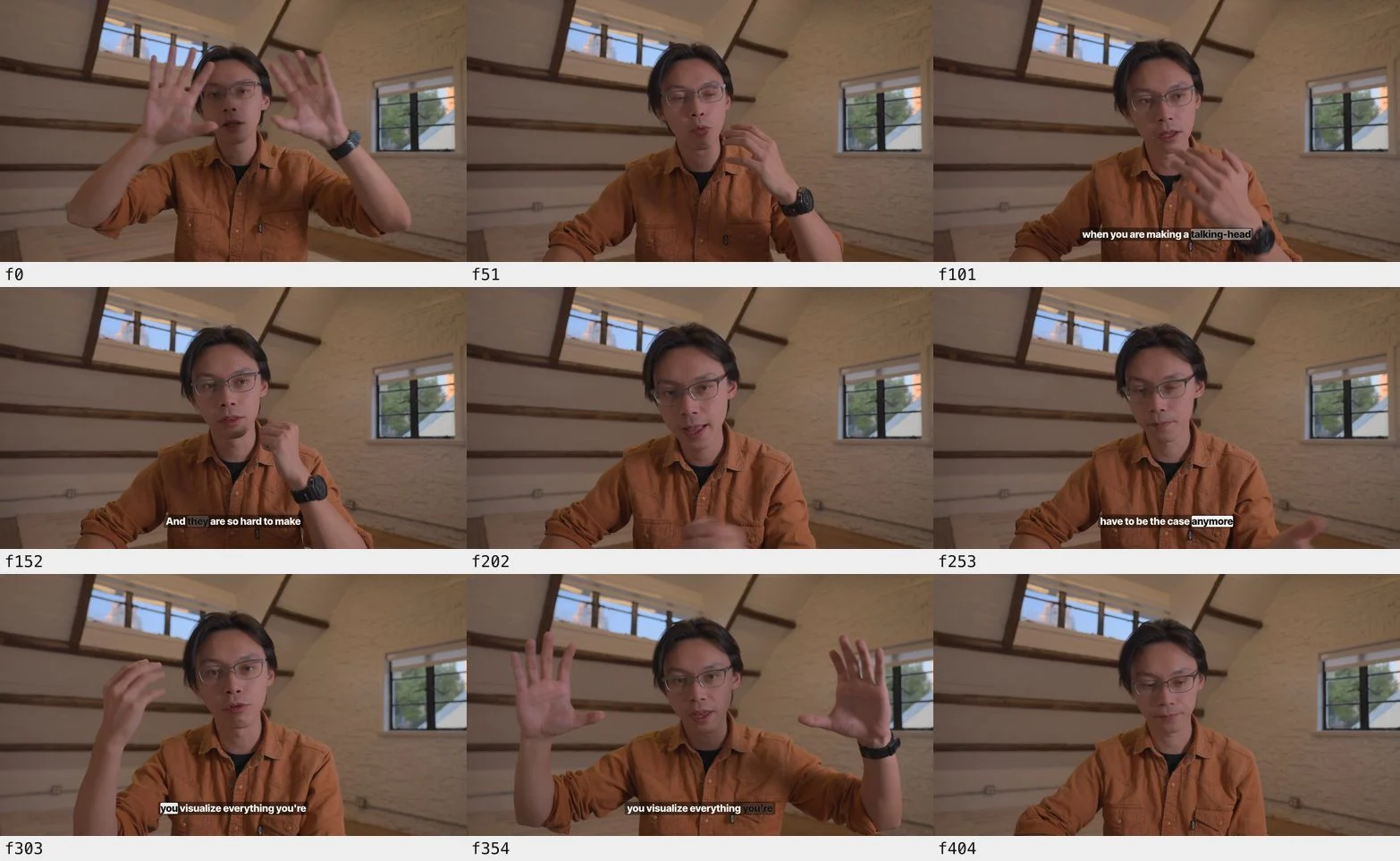
Gemini reviewed nine composed frames, raised both dialogue clips by +3.0 dB, and measured the mix changing from -21.9 LUFS to -18.9 LUFS. It then exported a local 1080p, 24 fps H.264 MP4 and an SRT containing nine cues, including the corrected brand name. The export task completed successfully; the web copy was subsequently compressed. The delivered MP4 independently measures -18.9 LUFS integrated with a true peak of about -1.3 dBTP, and is 4.59 MB (4.38 MiB), H.264/AAC. These measurements describe this export, not a universal loudness target or proof that every splice sounds good.
The original post-export billing receipt, checked at 14:04:19 UTC+8 on November 18, reports 0.00 ChatCut credits for this project: conversation and generation totals are both zero. That supports the project-scoped result for this import, analysis, cut, captions, and export run. It is not an account-wide zero-spend statement, a final settlement guarantee, or evidence that Google’s reasoning usage was free. Antigravity’s own allowance or charges remain separate. For another workflow, see turning long videos into shorts.
What did Gemini get right — and what did it get wrong on our 73-second video?
We compared the isolated 10-second blind pass against denser source frames, the audio, and actual edit receipts. The separate audit filled in the remaining integer-second samples through 73s; together with 0s, that is 74 sampled timestamps, not 73. Scene-cut detection analyzed 1,752 frames and returned no detected cuts at threshold 0.3. The session also read an extracted audio track and measured 50 ms RMS dBFS windows around candidate cut boundaries. This audits Gemini’s selected-frame workflow in Antigravity; it does not measure native video-upload accuracy in Gemini Apps or the API.
What did Gemini get right in the blind pass?
- Separated spoken claims from visible overlays. Gemini noticed that the presenter refers to motion graphics, while none appear in the eight supplied samples. Those images support the observation about sampled moments; they do not alone prove every frame of the recording lacks overlays.
- Flagged two likely ASR errors before editing captions. It suggested “cards” for “cars” around 18.60s, and “ChatCut’s” for “Checkouts” at 60.78s and 62.54s. The later caption correction and exported SRT confirm the brand-name repair. “Cards” remains a plausible contextual suggestion; the hand gesture by itself cannot verify the audio.
- Chose a self-contained problem-to-solution passage. Its original answer selected 24.32–34.93s plus 62.54–68.38s, identified the intervening retakes, and explained why “Thirdly” is a weak standalone opening. The committed timeline confirms that Gemini used those speech ranges with small audio pads, rather than merely suggesting an edit.
What did Gemini miss or infer incorrectly?
- Invented continuous eye contact from two endpoints. Gemini wrote: “Between 50.000s and 60.000s he stays locked onto the camera”. The denser frames show downward gazes at 51–52s, broad hand gestures at 54–55s, and a forward lean at 58s. The continuous-eye-contact claim was wrong. The images do not establish that the presenter was reading notes or how far he moved in physical space.
- Could not see gestures between its samples. The 6s, 54s, and 66s frames show broad gestures absent from the eight-frame overview. The 66s gesture falls inside the retained second clip. A centered 9:16 crop of a 1920×1080 source keeps only about 608 pixels of width, so these are useful moments to inspect before choosing a vertical crop. We kept the landscape canvas.
- Described transcript gaps as silence without audio evidence. The blind response calls 34.93–39.17s a silent pause. The separate audio measurement shows a -18.1 dBFS RMS burst in the 50 ms window starting at 35.45s, up from -53.1 dBFS in the preceding window. That disproves clean silence; the level alone does not identify the sound as a cough. Denser frames also show a hand touching the head at 17s and a reach toward the camera at 72s, actions the sparse overview could not show.
Sparse frames support claims about the sampled moments. They leave events between samples uncertain; increasing sampling and listening to the relevant audio can resolve some of those gaps.
What you still need to check yourself (plus copyable prompts and fixes)
Whenever you use Gemini to watch a video and plan an edit — whether in gemini.google.com or inside Antigravity + ChatCut — run two quick checks before publishing:
- Zoom in to 0.5s–1s frames around every cut boundary and crop decision. Use coarse 10-second frames to map a long recording, then pull dense frames across the 15-second stretch you actually plan to keep so wide hand gestures, blinks, or lean-ins don’t surprise you.
- Listen to transcript gaps and splice tails. Coughs, breaths, mic bumps, and chair sounds may occur without recognized words. Adjust padding to the actual recording rather than relying on one fixed duration.
Use these two copyable prompts to keep Gemini honest on any local recording in Antigravity + ChatCut:
Troubleshooting common snags:
- Gemini Apps cannot answer about a YouTube video. Check Keep Activity, use a regular chat instead of Live or Google Messages, and ask Gemini to find the public video first (YouTube help). The API’s private/unlisted restrictions should not be presented as an Apps-specific rule.
- A file upload fails. “Delete data to upload file” concerns stored chat data; remove only history you no longer need under Settings → History, or contact your Workspace administrator. “Your uploads may be too large for the best results” concerns analysis quality/context; try a smaller relevant excerpt. The file-upload guide distinguishes these cases.
- The editor tools do not appear in Antigravity. Follow the connection instructions, check the ChatCut connection, and start a new conversation after setup. Do not assume an already-open conversation has loaded a newly installed connection.