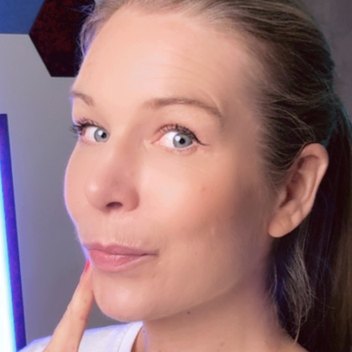
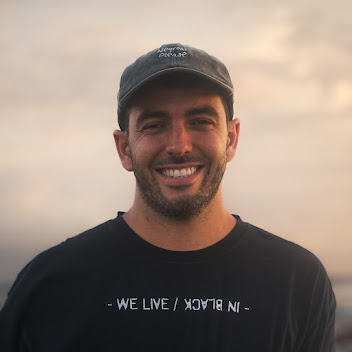
Light your face from the front
Face a window or a lamp rather than sitting with it behind you; a bright background turns your face into a silhouette. Raise the laptop or camera so the lens is at eye level, and leave a little space above your head. Look at the lens, not your own preview, when you want to make eye contact with viewers.
Use the microphone closest to you
If your headset or a USB microphone is connected, choose it in the Microphone list before you start; it will usually sound clearer than the laptop's built-in one. A quiet, furnished room helps more than any setting. If noise still gets in, ChatCut can clean it up after you bring the video in.
Know what you get
Your browser records an MP4 or a WebM file, named with the date and time. Each take can run up to 30 minutes and is held in the tab's memory until you download it, so save it before closing the tab. Use the free video converter if another app needs MP4.
Record straight into a ChatCut project
If the clip belongs in a video you're editing in ChatCut, use the editor's Camera recording instead: it shows a camera preview first and places the take on the timeline at the playhead. Recording doesn't use credits.