The best video editing software for most people in 2026 is DaVinci Resolve: its free version exports up to Ultra HD at 60 fps with no watermark, and the paid Studio version is a one-time purchase. Pick Adobe Premiere if you work with an agency or a Creative Cloud team, Final Cut Pro if you edit on a Mac and want to pay once, and iMovie or Clipchamp if you’re new and want to spend nothing. If you’d rather describe an edit in plain words and then fine-tune the cuts yourself, ChatCut fits that one job.
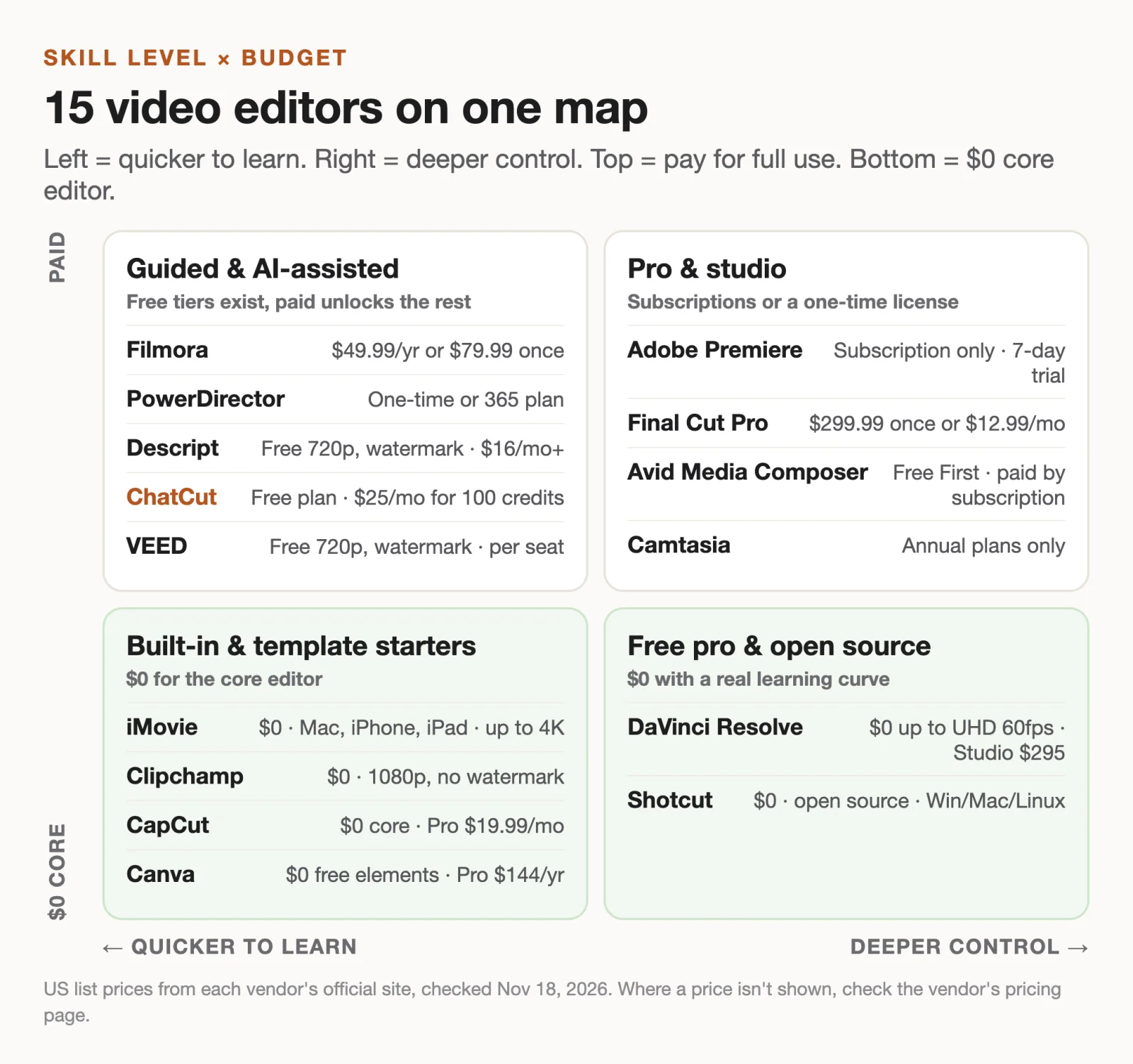
The right pick depends on how much editing you know and how much you want to spend, so this guide sorts 15 editors by both.
Disclosure: We make ChatCut, one of the 15 editors below. Every editor gets the same fields, and our entry lists its limits like everyone else’s.
Key Takeaways
- Free doesn’t mean basic anymore. DaVinci Resolve, Shotcut, iMovie and Clipchamp all export without a watermark at $0. DaVinci and iMovie go up to 4K.
- Watch the watermark line. Descript’s and VEED’s free plans export 720p with a watermark; CapCut and Canva stay clean only if you avoid premium assets.
- Subscription or one-time? Final Cut Pro ($299.99), DaVinci Resolve Studio ($295), Filmora ($79.99) and PowerDirector sell one-time licenses. Adobe Premiere and Camtasia are subscription only.
- AI editors are now their own category. This list includes three of them; our best AI video editors guide compares many more.
- On a Mac? Our Mac video editing software guide goes deeper on Apple-only options.
Best Video Editing Software at a Glance
| Editor | Best for | Platforms | Free version (real limits) | Paid from (US) | Learning curve |
|---|---|---|---|---|---|
| DaVinci Resolve | Pro editing, color and audio for $0 | macOS, Windows, Linux | Up to UHD 60 fps, 8-bit, no watermark | Studio $295 one-time | Steep |
| Adobe Premiere | Agencies and Creative Cloud teams | macOS, Windows | No free version; 7-day trial | Subscription only | Steep |
| Final Cut Pro | Mac editors who want to buy once | macOS, iPadOS | 30-day Apple Creator Studio trial | $299.99 one-time or $12.99/mo | Medium |
| Avid Media Composer | Film, TV and newsroom teams | macOS, Windows | Free “First” edition, limited export formats and effects | Subscription | Steep |
| CapCut | TikTok, Reels and Shorts | Windows, macOS, web, mobile | Clean export only without Pro features or assets | $19.99/mo or $179.99/yr | Easy |
| Filmora | YouTube creators who like presets | Windows, macOS | Watermark-free export is a paid-plan feature | $49.99/yr or $79.99 one-time | Easy |
| PowerDirector | Guided editing with a buy-once option | Windows, macOS | Free download; check limits before export | One-time or 365 subscription | Easy |
| Canva | On-brand social clips and slides | Web, desktop, mobile | Premium elements carry a watermark | $18/mo or $144/yr | Easy |
| Camtasia | Tutorials and screen recordings | Windows, macOS | Free download is a trial | Annual plans only | Easy to medium |
| Descript | Podcasts and talking-head video | Web, macOS, Windows | 720p export with a watermark | $16/mo billed yearly | Easy |
| ChatCut | Plain-language edits on a real timeline | Web, macOS, Windows (x64) | No watermark; 60 min of cloud exports (Desktop local exports don’t count) | $25/mo for 100 credits | Easy |
| VEED | Browser editing with a team | Web | 720p, watermark, 10-minute videos | Per seat | Easy |
| iMovie | First edits on a Mac or iPhone | macOS, iOS, iPadOS | Free, up to 4K | No paid tier | Easy |
| Clipchamp | First edits on Windows | Windows, web | 1080p, no watermark | 4K via Microsoft 365 | Easy |
| Shotcut | Open source, offline, Linux | Windows, macOS, Linux | Free and open source, up to 4K | No paid tier | Medium |
Prices are the vendors’ US list prices on November 18, 2026. Where a vendor loads prices by region or we couldn’t confirm a US figure, the table says “subscription” or “per seat” instead of guessing.
How We Chose and Checked These Editors
We started from what people searching for the best video editing software ask (is Premiere free, is DaVinci better than CapCut, how much RAM 4K needs) and judged each candidate on four things:
- The real free limit. Watermark, export resolution and length caps, read from each vendor’s own pricing or help pages.
- What it costs over time. One-time license versus subscription, and what the cheapest plan actually unlocks.
- How much control you keep. Whether you can still trim frame by frame, layer tracks and grade color, or whether presets make the decisions.
- Who it’s built for. A tutorial maker, a YouTuber and a broadcast editor need different tools.
Facts for every competitor come from the official websites, help centers and pricing pages, checked on November 18, 2026. We didn’t run the same footage through all 15 editors, so this isn’t a speed or quality benchmark; the one hands-on test is of our own editor, described in its entry. We dropped Adobe Premiere Rush and HitFilm, which older lists still recommend, because both are discontinued.
Professional Editors: Film, Color and Broadcast
These four have the highest ceiling and the steepest learning curve. Pick one if editing is your job or you want it to be.
1. DaVinci Resolve: best free pro editor
DaVinci Resolve from Blackmagic Design puts editing, color grading, visual effects (Fusion) and audio post (Fairlight) in one app, on macOS, Windows and Linux.
Best for: anyone who wants professional tools without a subscription, from film students to YouTubers who care about color.
What stands out:
- The free version works with virtually all 8-bit formats at up to 60 fps and resolutions as high as Ultra HD 3840 × 2160, according to Blackmagic, and includes multi-user collaboration and HDR grading.
- Its color page is an industry reference for grading.
- DaVinci Resolve Studio is a one-time $295 (it showed a sale price of $236 when we checked), not a subscription.
Limits:
- Separate pages for cutting, editing, effects, color and audio are a lot to learn as a beginner.
- It wants a capable GPU and plenty of RAM; older laptops struggle with 4K timelines.
Pricing: free; Studio $295 one-time.
Skip it if: you just trim phone clips; iMovie or Clipchamp is faster.
2. Adobe Premiere: best for Creative Cloud teams
Adobe Premiere, still widely called Premiere Pro, is the editor most agencies and post houses already run, and it plugs into After Effects, Photoshop and the rest of Creative Cloud.
Best for: editors who share projects with agencies, clients or teams already on Adobe.
What stands out:
- Industry-standard project exchange: if a client sends a Premiere project, you can open it.
- Desktop apps run locally; Adobe’s pricing FAQ says you only need to go online once every 99 days to validate the membership.
Limits:
- There’s no free version. Adobe says Premiere is “available only with a membership plan.”
- A 7-day free trial is short for learning a pro editor; you can cancel within 14 days for a full refund.
Pricing: subscription only; see Adobe’s plans page for current US pricing and promotions.
Skip it if: you work alone and don’t need Adobe file exchange. DaVinci Resolve does most of the same work for free.
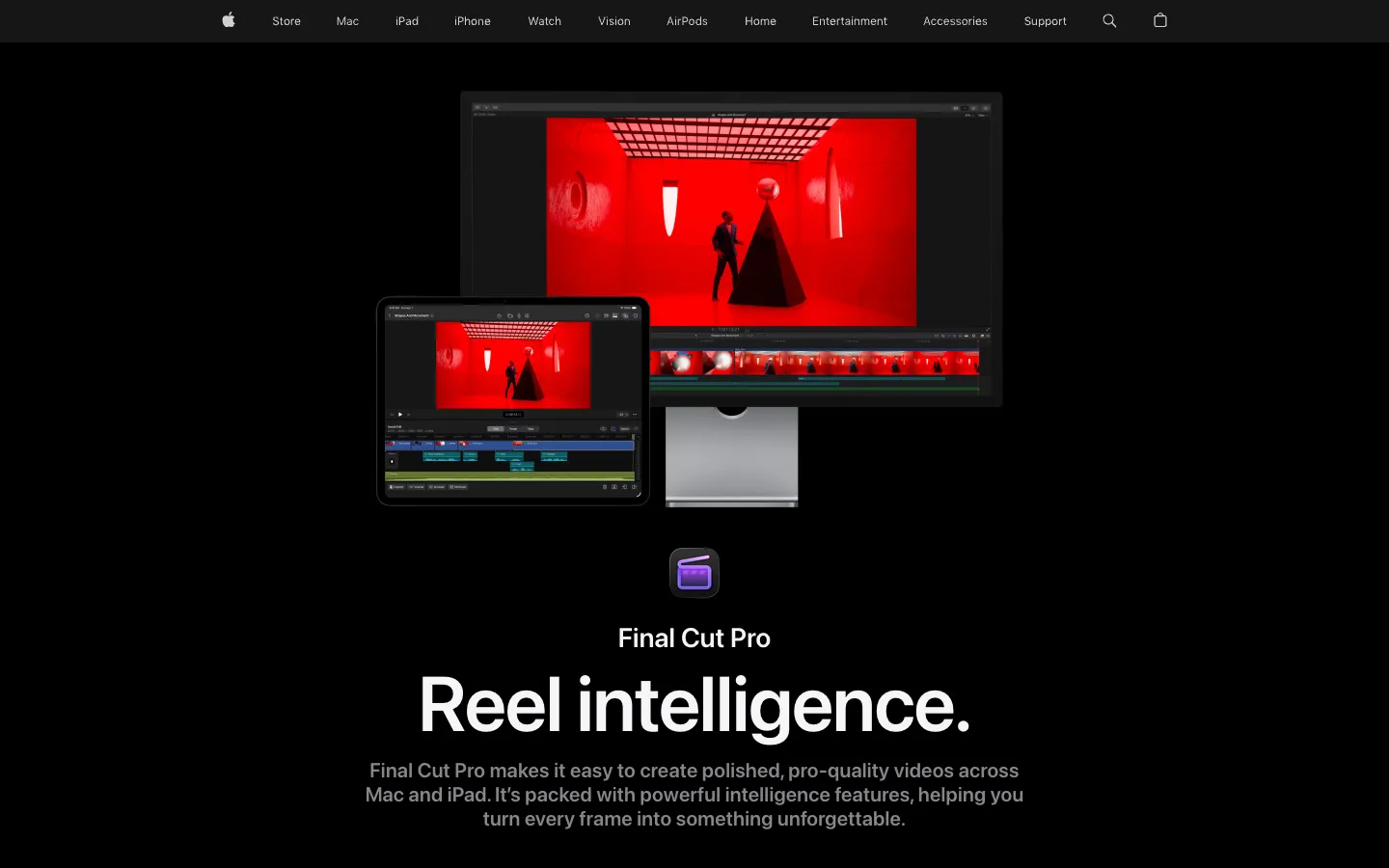
3. Final Cut Pro: best for Mac editors who want to buy once
Final Cut Pro is Apple’s pro editor for Mac and iPad, known for its magnetic timeline and speed on Apple silicon.
Best for: Mac-only creators and editors who prefer a one-time purchase.
What stands out:
- $299.99 one-time on the Mac App Store, with no monthly bill.
- Or subscribe to Apple Creator Studio ($12.99 a month or $129 a year), which includes Final Cut Pro for Mac and iPad.
Limits:
- Mac and iPad only. The current version needs macOS 15.6 or later.
- The only trial Apple lists is a 30-day Apple Creator Studio trial.
Pricing: $299.99 one-time, or $12.99/mo through Apple Creator Studio.
Skip it if: you collaborate with Windows users or need to hand projects to Premiere shops.
4. Avid Media Composer: best for film and TV pipelines
Avid Media Composer has cut feature films and network TV for decades. It’s built for large projects shared by several editors.
Best for: editors aiming at film, broadcast or newsroom jobs where Avid is the house standard.
What stands out:
- A free edition, Media Composer | First, with up to 99 video and 99 audio tracks, per Avid’s comparison page.
- Shared projects on Avid NEXIS storage in the paid tiers.
- Script-based editing and PhraseFind AI in the higher tiers.
Limits:
- First exports to a limited set of QuickTime formats (H.264, DNxHD) and has a limited set of effects and plugins.
- The interface feels old-fashioned if you learned on CapCut or iMovie.
Pricing: First is free; Standard is a one-year subscription (monthly or annual payment), with Ultimate and Enterprise above it. Check Avid’s store for current prices.
Skip it if: you’re a solo creator. You’ll spend months learning a workflow built for teams.
Creator, Social and Tutorial Editors
Easier to learn and built around templates and fast publishing. Most have a free tier with strings attached.
5. CapCut: best for short-form social video
CapCut runs on Windows, macOS, the web and phones, and its templates are how many TikTok and Reels trends spread.
Best for: creators publishing vertical short-form video several times a week.
What stands out:
- Huge template and effects library, with auto captions built in.
- CapCut says both Standard and Pro users can save video up to 8K.
Limits:
- Whether you get a clean export depends on what you used: CapCut’s watermark help page explains that some templates and assets add watermarks automatically.
- It isn’t available in every country’s app store.
Pricing: free; CapCut Pro is $19.99 a month or $179.99 a year in the US.
Skip it if: you edit long-form or client work where licensing and template rules get in the way.
6. Filmora: best preset-rich editor for YouTube creators
Wondershare Filmora is a friendly desktop editor full of drag-and-drop titles, transitions, effects and AI helpers.
Best for: YouTubers and hobbyists who want polish without learning a pro editor.
What stands out:
- A one-time license for $79.99, unusual in this tier.
- Paid plans include 4K export and Filmora’s creative-asset library.
Limits:
- Filmora’s plan page lists watermark-free export as a paid-plan feature, so test the free download before relying on it.
- The asset library and AI credits differ by plan; read the plan details before buying.
Pricing: Basic $49.99/yr, Advanced $59.99/yr, or $79.99 one-time.
Skip it if: you want frame-level control for client work; a pro editor will feel less boxed in.
7. PowerDirector: best guided editor with a one-time option
CyberLink PowerDirector is a long-running consumer editor for Windows and Mac, now with an “Agentic Editor” in the subscription version.
Best for: home and hobby editors who want guided tools and the option to buy once.
What stands out:
- Two lines on CyberLink’s pricing page: PowerDirector 2027 as a one-time purchase, or PowerDirector 365 with monthly feature updates.
- Both export in 4K; 365 adds 1,200 AI credits a year for generative features, issued 100 a month.
Limits:
- The number of editions (2027, Ultra, Ultimate, 365, Director Suite) makes the line-up hard to compare.
- Generative AI features run on credits, so heavy use costs extra.
Pricing: one-time or subscription; CyberLink shows current prices on its pricing page.
Skip it if: you already know a pro editor, or you only edit on a Mac and Final Cut Pro is in reach.
8. Canva: best for on-brand social clips
Canva is a design tool first, with a simple video editor that shares templates, fonts and brand assets with everything else you make there.
Best for: marketers and small businesses who need social clips, slides and graphics to match.
What stands out:
- Thousands of video templates alongside the design templates you may already use.
Limits:
- Free elements export cleanly, but premium elements are watermarked on the free plan.
- Timeline control is basic; frame-precise cutting is easier in a dedicated editor.
Pricing: free; Canva Pro is $18 a month or $144 a year for one person.
Skip it if: your videos are mostly long recordings that need cutting rather than designing.
9. Camtasia: best for tutorials and screen recordings
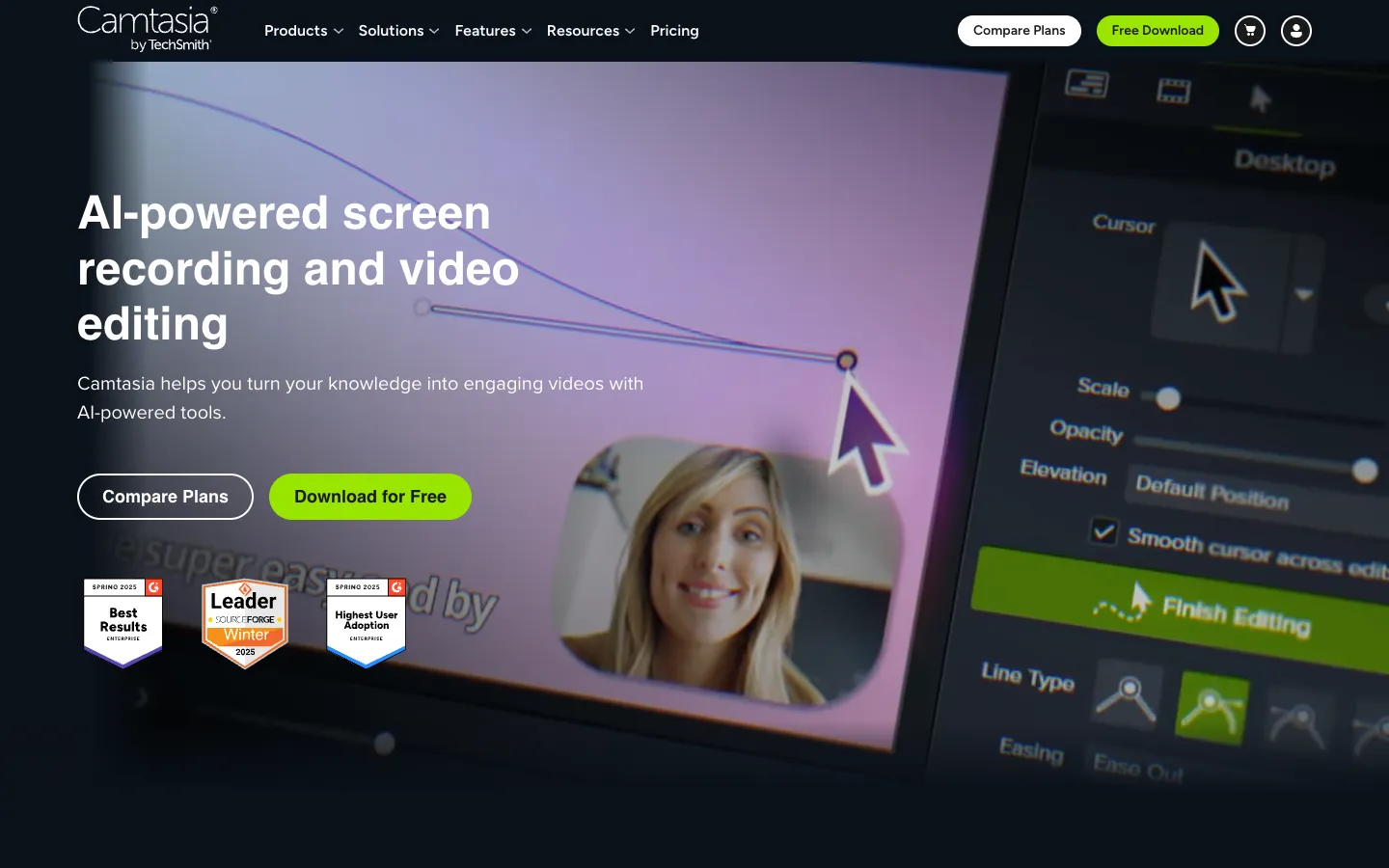
TechSmith Camtasia combines a screen recorder with an editor built around cursor effects, callouts and zooms.
Best for: course creators, trainers and software teams making how-to videos.
What stands out:
- Record and edit in one app, with cursor smoothing and highlight effects for demos.
- Higher plans add text-based editing and AI voices, according to TechSmith’s store page.
Limits:
- Sold as annual plans only (Starter, Essentials, Create and Pro); there’s no perpetual license on the store.
- It’s a tutorial tool, not a general-purpose editor for cinematic footage.
Pricing: annual subscription; prices show in your local currency on TechSmith’s store.
Skip it if: you rarely record your screen.
AI-Assisted Editors: Three Picks for Faster Rough Cuts
These three let AI do the tedious first pass, then hand you an editable result: one transcript-first editor, one agent-driven timeline editor and one browser editor. For clipping, avatars and generation tools, see our best AI video editors guide.
10. Descript: best for editing speech like a document
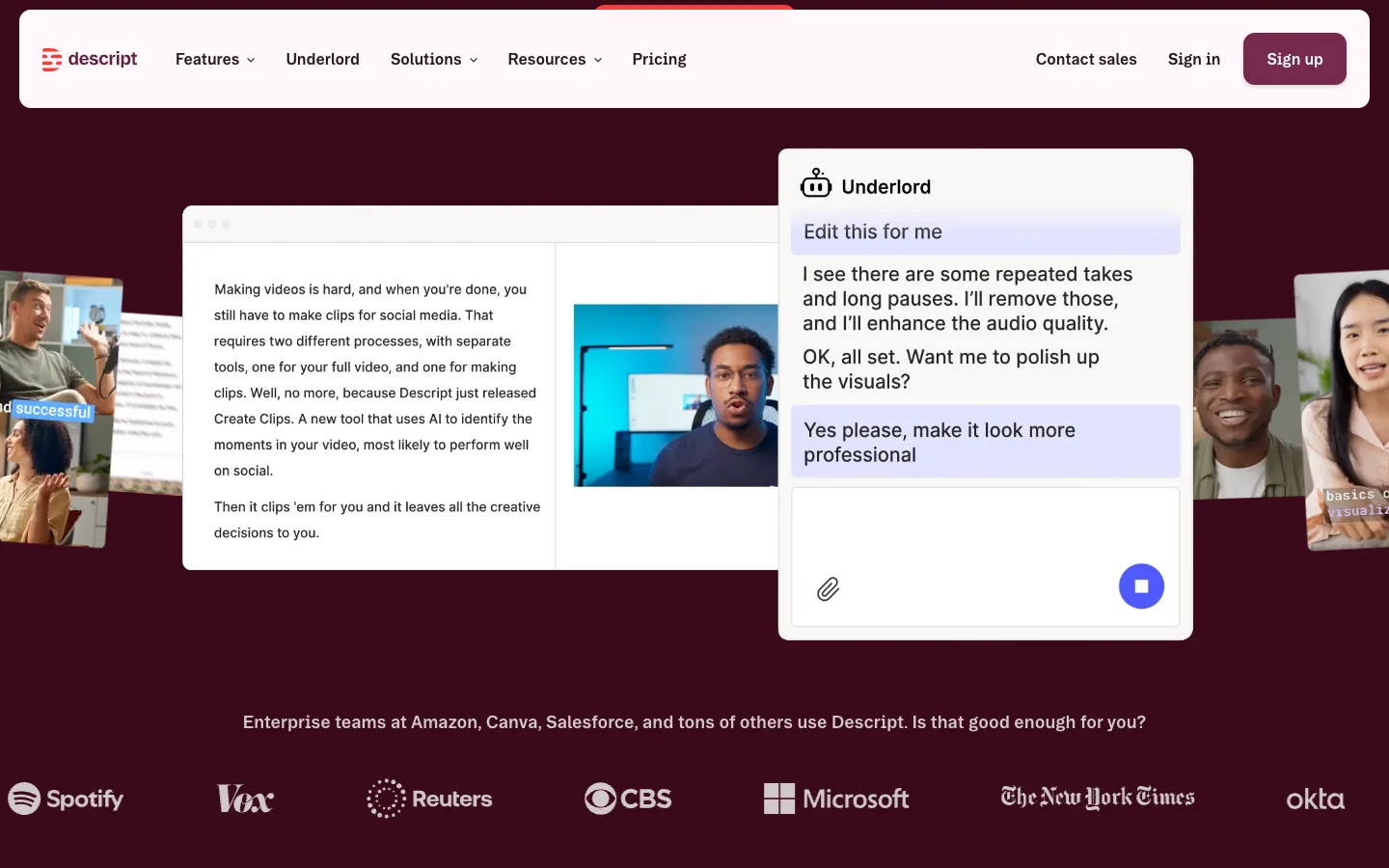
Descript turns your recording into a transcript, and you edit the video by editing the text. Its AI assistant, Underlord, can remove retakes and long pauses on request.
Best for: podcasters, interviewers and anyone whose video is mostly people talking.
What stands out:
- Delete a sentence in the text and it’s gone from the video.
- Studio Sound and filler-word removal are built in on paid plans.
Limits:
- The free plan exports 720p with a watermark, per Descript’s pricing page.
- Paid plans meter “media hours” (10 a month on Hobbyist, 30 on Creator) and AI credits.
Pricing: Hobbyist $16/mo billed yearly ($24 monthly) for 1080p; Creator $24/mo billed yearly ($35 monthly) for 4K.
Skip it if: your videos are B-roll and music, not speech.
11. ChatCut: best for plain-language edits on a real timeline
ChatCut is an AI video editor where you describe an edit (“remove the retakes and add chapter titles”) and an agent makes it on a multi-track timeline that you can keep editing by hand. It runs in a desktop browser, as a Desktop app for macOS and Windows, and inside Claude Code, Codex or WorkBuddy through the Agent Plugin.
Best for: creators who know what result they want but don’t want to spend an hour scrubbing for ums and false starts.
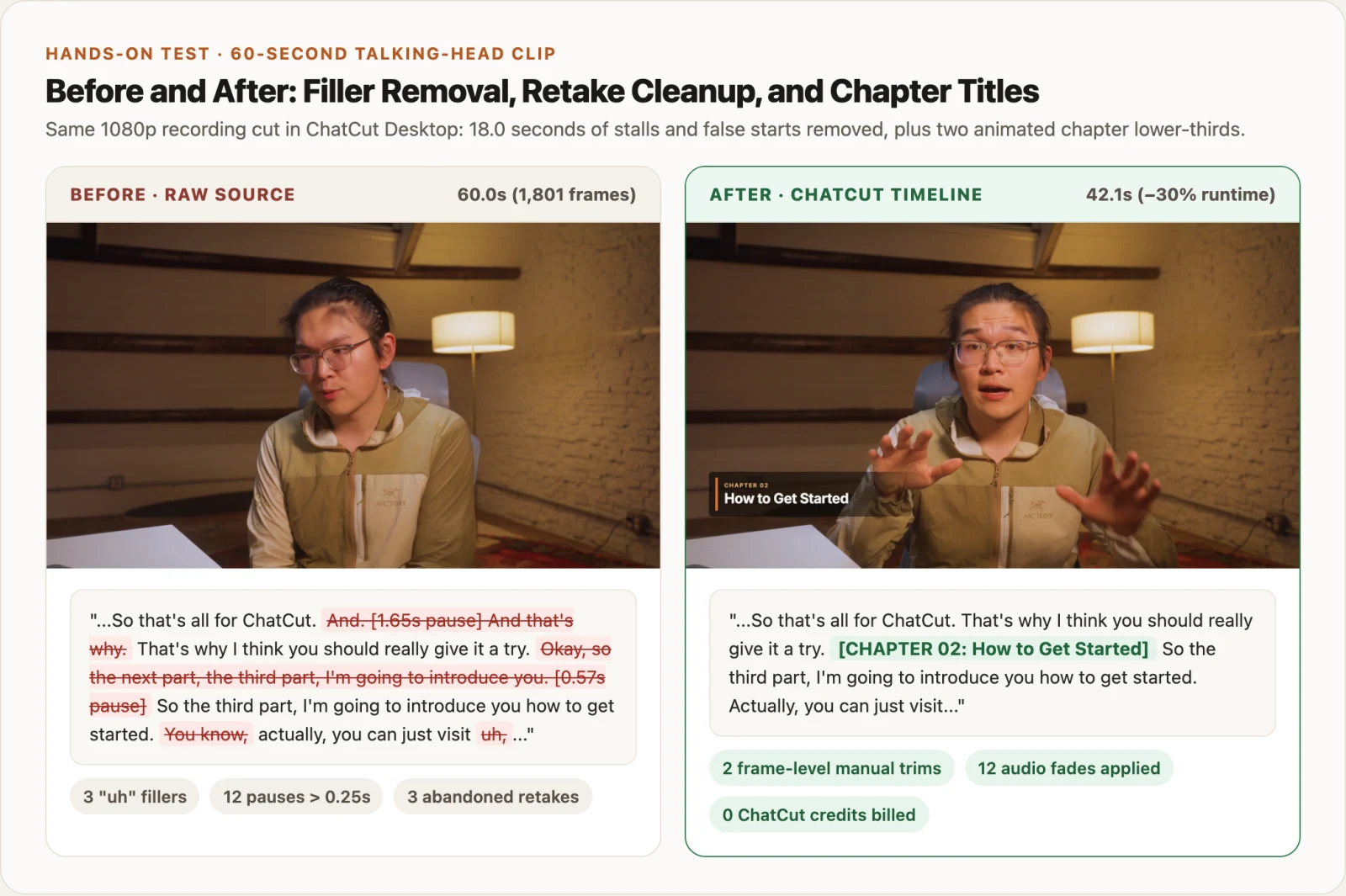
What we tested: on Nov 18, 2026 we took a 60-second clip from a real talking-head recording and asked for the job in the prompt below, using an AI coding agent connected to the Desktop app. The agent removed 3 “uh”s, tightened 12 long pauses, and cut three abandoned retakes plus a stray “you know.” The clip went from 60.0 to 42.1 seconds, about 30% shorter. It then added two animated chapter titles at the right sentences. We made three manual fixes: we nudged two cut points by one frame each, and darkened the strip behind one title so it stayed readable over a light sleeve. The run took about 11 minutes and used 0 credits: transcription, editing and export are free, and the agent ran on its own subscription.
What stands out:
- Every AI edit lands on a normal timeline, so you can trim, move or undo any cut yourself.
- The free plan exports without a watermark. Desktop exports render on your computer, up to 4K, and don’t count toward the free plan’s 60 minutes of cloud exports.
- Uploading, manual editing, transcription, captions and export don’t use credits.
Limits:
- It needs an internet connection, even the Desktop app, and there’s no Linux version; Windows needs an x64 PC.
- Messages to the built-in ChatCut Agent and all AI generation use credits, and AI video generation needs a paid plan.
- It isn’t a color-grading suite or a finishing tool; for a graded film master, use DaVinci Resolve or Premiere.
Pricing: free plan; paid plans from $25 a month for 100 credits, or $252 a year. See what Free and Pro include.
Skip it if: you enjoy cutting by hand and rarely edit speech, or you need offline editing.
12. VEED: best for browser-based team editing
VEED is a browser editor with auto subtitles, translation, a brand kit and review links, so a team can edit without installing anything.
Best for: marketing and social teams that edit together in the browser.
What stands out:
- Subtitles are a core feature. VEED says paid plans include unlimited subtitle generation, subject to a 50-hour monthly fair-use limit.
Limits:
- VEED’s own comparison page describes the free plan as 720p exports with a watermark and a 10-minute video limit.
- Billing is per seat, so costs scale with the team.
Pricing: per seat; confirm current amounts on VEED’s pricing page.
Skip it if: you edit large 4K files alone; a desktop editor handles them better.
Free Built-In and Open-Source Editors
All three cost nothing and add no watermark. Start here if you’re brand new or your budget is $0.
13. iMovie: best free starter on Apple devices
iMovie is Apple’s free editor for Mac, iPhone and iPad, with themes, trailers and simple titles.
Best for: first-time editors on Apple devices.
What stands out:
- Free on the App Store, with editing at up to 4K resolution.
- Start a project on iPhone or iPad and finish it on a Mac.
Limits:
- Apple devices only: there’s no Windows, Android or web version.
- The current Mac version requires macOS 26.6 or later.
Pricing: free; there’s no paid tier.
Skip it if: you’ve outgrown basic trims and titles. Final Cut Pro is the natural next step.
14. Clipchamp: best free starter on Windows
Microsoft Clipchamp comes with Windows 11 and also runs in a browser, with templates, auto captions and stock media.
Best for: Windows users making simple social clips, school projects or work videos.
What stands out:
- Microsoft says the free plan includes core editing, free stock media and watermark-free exports up to 1080p.
- Nothing to install on Windows 11.
Limits:
- 4K export, premium stock and brand kits need a qualifying Microsoft 365 subscription.
- The timeline is built for short, simple projects; it’s basic next to DaVinci Resolve or Premiere.
Pricing: free; premium features come with Microsoft 365.
Skip it if: you need multi-cam, advanced color or 4K for free. DaVinci Resolve covers that.
15. Shotcut: best free open-source editor
Shotcut is a free, open-source, cross-platform editor for Windows, Mac and Linux.
Best for: Linux users, privacy-minded editors and anyone who wants a capable editor with no account.
What stands out:
- Free and open source, with no paid tier to upsell.
- Supports resolutions up to 4K and a wide range of formats.
Limits:
- The interface is functional rather than friendly; expect to read the docs.
- Few templates; you build titles and looks yourself.
Pricing: free.
Skip it if: you want templates and hand-holding. Clipchamp or iMovie are gentler.
Also Considered
- Kdenlive: another free, open-source editor for Linux, Windows, macOS and BSD. A close alternative to Shotcut.
- Lightworks: its free plan exports Full HD 1080p; 4K export starts on the paid Create plan at $20 a month.
- VEGAS Pro: now sold by Boris FX, which bundles Boris FX tools such as Mocha Pro into it. Worth a look if you already use Boris FX plugins.
- Adobe Premiere Rush (discontinued): Adobe stopped offering it for download on September 30, 2025 and ended support on September 30, 2026. Ignore lists that still recommend it.
- HitFilm (discontinued): Artlist discontinued the FXhome apps, including HitFilm, in early 2025.
How to Choose the Best Software for Video Editing
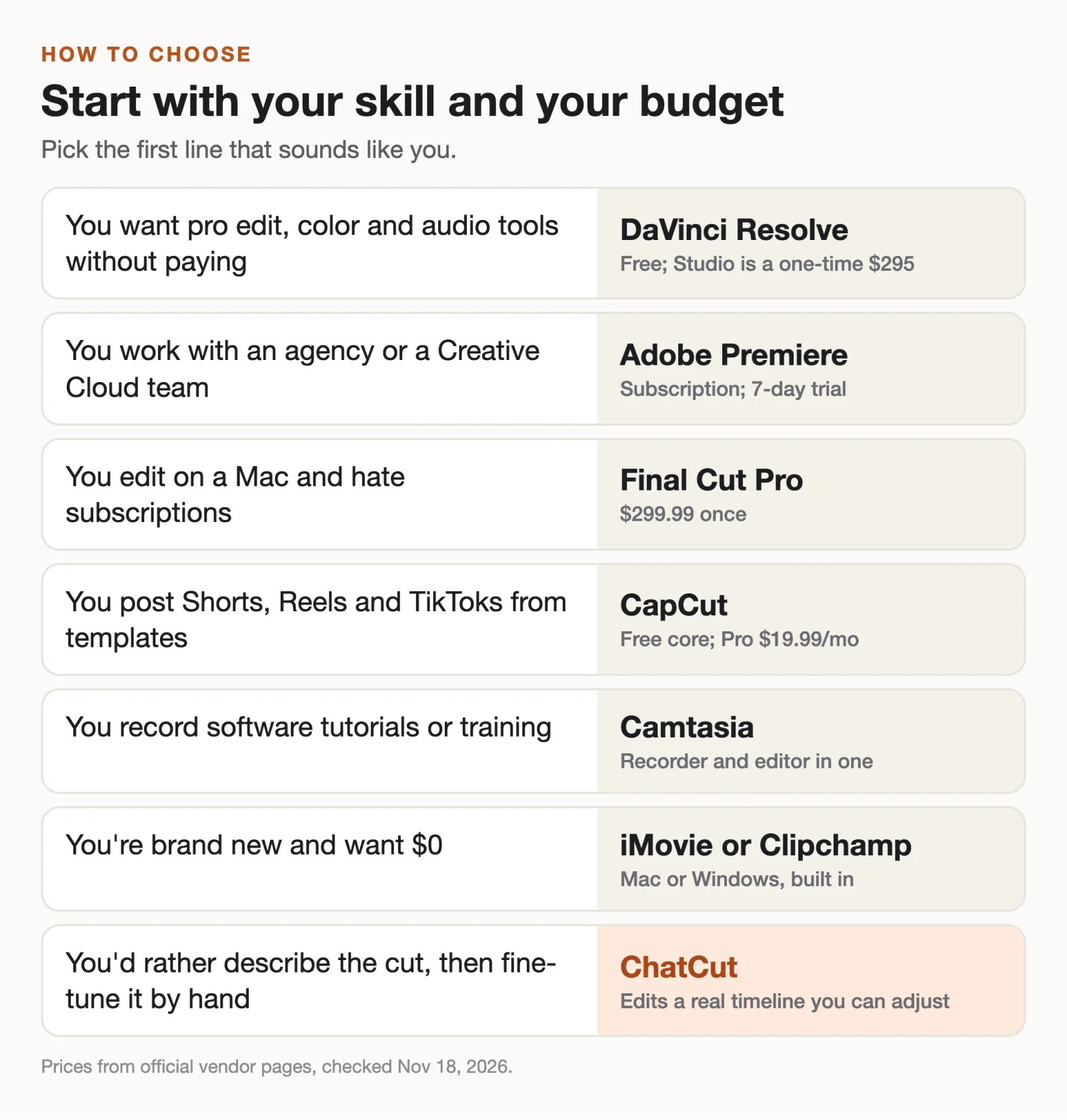
- If you want pro tools and $0, pick DaVinci Resolve.
- If you trade projects with agencies or clients on Adobe, pick Adobe Premiere.
- If you edit on a Mac and hate subscriptions, pick Final Cut Pro.
- If you post short vertical videos from templates, pick CapCut.
- If you record software tutorials or training, pick Camtasia.
- If you’re brand new and want to spend nothing, pick iMovie on Apple devices or Clipchamp on Windows.
- If you’d rather describe the cut and then fine-tune it, pick ChatCut.
Torn between two? Cut the same two-minute clip in both free versions; within an hour you’ll know which one fits how you think. For head-to-head matchups, see our compare pages.